> For the complete documentation index, see [llms.txt](https://borosan.gitbook.io/lpi-linux-essentials/llms.txt). Markdown versions of documentation pages are available by appending `.md` to page URLs; this page is available as [Markdown](https://borosan.gitbook.io/lpi-linux-essentials/3.1-archiving-files-on-the-command-line.md).
# 3.1 Archiving Files on the Command Line
### **3.1 Archiving Files on the Command Line**
**Weight:** 2
**Description:** Archiving files in the user home directory.
**Key Knowledge Areas:**
* Files, directories
* Archives, compression
**The following is a partial list of the used files, terms and utilities:**
* tar
* Common tar options
* gzip, bzip2, xz
* zip, unzip
### Archiving and Compressing files
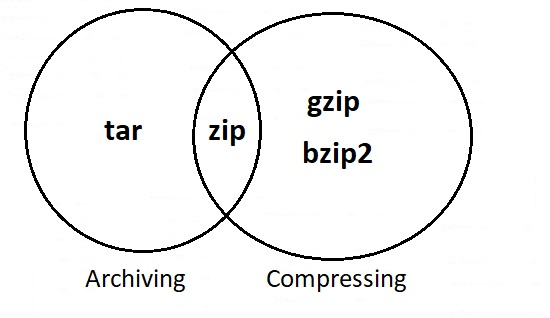
Archiving and compressing are two different things
* tar just archive files and does not do any compression by default.
* zip does both archiving and compresion.
* gzip and bzip2 are used just for compression.
Lets take a look at this good summary:
| | gzip | bzip2 | xz |
| -------------- | ------------------------------- | ------------------------------------ | ------------------------------ |
| **Compress** |
gzipfile gzip -k file
|
bzip2 file bzip2 -k file
|
xz file xz -k file
|
| **Decompress** |
gzip -d file gunzip
|
bzip2 -d file bunzip2 file
|
xz -d file unxz file
|
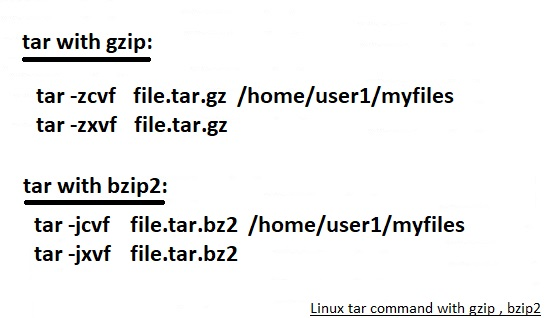
| **tar** flag | -z | -j | -J |
### zip
In Linux, the zip command compresses one or more files or directories into a single .zip archive file. This saves disk space, keeps data organized, and makes it simple to share or back up files. It's widely used to compress large files for email or cloud storage. Below are some common reasons individuals utilize the zip command:
* To reduce file size and save storage.
* To combine multiple files/folders into one for easier sharing.
* To protect files with passwords (using options).
* Works across platforms-ZIP files open easily on Windows, Linux, and macOS.
#### **Syntax:**
```
zip [options] archive_name.zip file1 file2 folder/
```
* **`zip`**: The command used to create a compressed archive.
* **`archive_name.zip`**: The name of the zip file to create.
* **`file1 file2`**: The files and directories you want to compress into the archive.
### Zip Command Options
Zip offers various options to customize compression, such as updating, excluding, or moving files. Below is a table highlighting essential zip command options in:
| **Option** | **What It Does** | **Example Command** |
| ---------- | ------------------------------------------------------------------------------------------------ | -------------------------------- |
| **`-d`** | **Delete a file from zip**: Removes specific files from an existing zip archive. | `zip -d myfiles.zip notes.txt` |
| **`-u`** | **Update the zip file**: Replaces or adds files **only if** they’ve been modified. | `zip -u myfiles.zip report.txt` |
| **`-m`** | **Move files into zip**: Adds files to the zip and deletes them from your system. Use carefully. | `zip -m myfiles.zip backup.txt` |
| **`-r`** | **Zip folders**: Compresses an entire folder and all its contents. | `zip -r myproject.zip myfolder/` |
| **`-x`** | **Exclude files**: Leaves out certain files or folders when zipping. | `zip -r myfiles.zip * -x *.log` |
| **`-v`** | **Verbose mode**: Shows detailed progress while compressing. | `zip -v myfiles.zip sample.txt` |
### unzip
unzip will list, test, or extract files from a ZIP archive. The default behavior (with no options) is to extract into the current directory (and sub-directories below it) all files from the specified ZIP archive.
**Syntax:**
```
unzip [file_name.zip]
```
## Compressing files
### gzip
#### The gzip command in Linux is used to compress files efficiently, reducing their size to save storage space and speed up file transfer without losing data.
* Uses the Lempel-Ziv (LZ77) compression algorithm for speed and efficiency.
* Replaces the original file with a compressed version ending in .gz.
* Can decompress files using the -d option or the gunzip command.
\
Example : How to compress a file using the gzip command in Linux:
```
gzip mydoc.txt
```
* Creates mydoc.txt.gz in the same directory and removes mydoc.txt by default; use -k to keep the original.
Example : How to Decompress a gzip File in Linux
```
gzip -d mydoc.txt.gz
```
his command decompresses the specified gzip file, leaving the original uncompressed file intact.
#### **Syntax of the gzip Command**
The basic syntax of the gzip command is straightforward:
```
gzip [Options] [filenames]
```
This syntax allows users to compress a specified file.
#### **`gzip` Commands and Use Cases**
| Options | Description |
| ------- | ------------------------------------------------------------------------------------------------ |
| -f | Forcefully compress a file even if a compressed version with the same name already exists. |
| -k | Compress a file and keep the original file, resulting in both the compressed and original files. |
| -L | Display the gzip license for the software. |
| -r | Recursively compress all files in a folder and its subfolders. |
| -v | Display the name and percentage reduction for each file compressed or decompressed. |
| -d | Decompress a file that was compressed using the gzip command. |
### gunzip
The gunzip command in Linux is used to decompress files that were compressed using the `gzip` command, restoring them to their original form.
* It automatically removes the .gz extension after decompression.
* Can decompress multiple files at once.
* Supports options like -k,-f, and -r or flexibility.
* Useful for extracting logs, backups, and archives compressed with gzip.
**Example:** Decompress a Single .gz File
```
gunzip example.txt.gz
```
Extracts example`.txt.gz` and restores it as example`.txt`, deleting the .gz file after decompression.
**Syntax**
```
gunzip [Option] [archive name/file name]
```
#### Commonly Used gunzip Command Options
| **Option** | **What It Does** | **Example Command** |
| ---------- | -------------------------------------------------------------------------------------------------------------------------------------------------------------------------------------------- | --------------------------- |
| **`-c`** |
Displays decompressed content directly on the terminal instead of saving it.
Useful for viewing file content without extracting to disk.
| `gunzip -c example.gz` |
| **`-k`** |
Decompresses the .gz file but retains the original file.txt.gz
Handy when you want both compressed and uncompressed versions
| `gunzip -k example1.gz` |
| **`-f`** |
Automatically overwrites existing files without prompting for confirmation
Useful in scripts or batch operations where manual confirmation isn’t possible.
| `gunzip -f example1.gz` |
| **`-r`** |
Decompresses all .gz files within the specified directory and its subdirectories.
Saves time when handling multiple compressed files in nested folders.
| `gunzip -r /home/payam/igi` |
| **`-v`** |
Displays detailed information while decompressing each file.
Helps monitor the progress and confirms which files are being processed.
| `gunzip -v file1.gz` |
| **`-t`** |
Verifies whether a .gz file is valid and not corrupted.
Does not decompress the file; only checks its consistency.
| `gunzip -t example2.gz` |
| **`-l`** |
Displays compression statistics like original size, ratio, and name.
Useful for checking space savings and compression efficiency.
| `gunzip -l example2.gz` |
### bzip
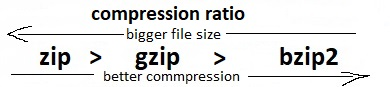
**bzip2** command in Linux is used to compress and decompress the files i.e. it helps in binding the files into a single file which takes less storage space than the original file used to take. It has a slower decompression time and higher memory use. It uses the Burrows-Wheeler block sorting text compression algorithm and **Huffman Coding.** Each file is replaced by a compressed version of itself, with the name original name of the file followed by the extension **bz2**.
example:
```
bzip2 -k file1.txt
```
Creates input.txt.bz2 while keeping file1.txt due to -k; without -k, file1.txt would be removed after compression.
**Syntax**
```
bzip2 [OPTIONS] filenames ...
```
Each provided file is compressed individually to file.bz2; to decompress, use bunzip2 or bzip2 -d.
#### **Commonly Used Options in bzip2**
Option
What It Does
Example Command
-z
Compress a File
bzip2 -z input.txt
-k
Keep the Original File
bzip2 -k input.txt
-d
Decompress a File
bzip2 -d input.txt.bz2
-t
Integrity Check
bzip2 -t input.txt.bz2
-v
Verbose Mode
bzip2 -v input.txt
### bunzip2
The `bunzip2` command is used to decompress files that have been compressed using the bzip2 compression algorithm.
The basic syntax of the `bunzip2` command is as follows:
```
bunzip2 [options] file.bz2
```
Here, `file.bz2` is the name of the compressed file that you want to decompress.
Some common options for the `bunzip2` command include:
* `-k`: Keep the compressed file after decompression.
* `-f`: Force decompression, overwriting existing files without prompting.
* `-v`: Verbose mode, which displays information about the decompression process.
To decompress a file using the `bunzip2` command, simply run the following command:
```
bunzip2 file.bz2
```
This will create a new file named `file` that contains the decompressed data.
### xz
XZ is a data compression tool in Linux that helps reduce the size of files using the efficient LZMA2 compression algorithm. It is commonly used to save space or for distributing software packages.
* Achieves high compression ratios (smaller file sizes).
* Useful for saving disk space and archiving large files.
* Supports both compression and decompression.
\
example: Compressing a file , The following command is used to compress the a example.txt to example.txt.xz
```
xz example.txt
```
**Syntax:**
```
xz [options] file_name
```
* **`xz:`** The command used for compression or decompression.
* **`[options]:`** Flags or parameters that modify the command’s behavior (e.g., `-d`, `-k`, `-v`).
* **`[file_name]:`** The name of the file you want to compress or decompress.
#### Examples of xz Command
command
Description
xz filename
# Another way
xz -z filename
Compress files using xz
xz -d filename
## Another way
unxz filename
Decompress files with xz
xz -k filename
Creating compressed file without deleting an original file
xz -v filename
Progress Monitor While compressing and Decompressing
xz --memlimit-compress=20% filename
Reducing Ram Usage
xz -8 filename
Controlling the size of compression
> We can control the size of compressing the file using the xz .xz provides the options for compression level between **0** and **9** the default value of compression level is 6. Here the 0 is the fast but **less** compressed file, and we can use the --fast option for the 0 levels. And the 9 is slow more compress the file, and we can use the **--best** option for level 9.
{% hint style="success" %}
### **Use Cases of XZ Command**
The following are the use cases of XZ Command:
* **Archiving Log Files:** It useful for compressing the large files to save the disk space.
* **Distributing Software Packages:** It used for reducing download times and bandwidth usage by compressing the software packages.
* **Backup and Restore:** It useful for minimizing the storage needsand to improve the transfer speeds for backups.
* **Embedded Systems:** It is helps for optimzing the storage and performance by compressing the frimware and application files.
{% endhint %}
## Archiving files
What is an Archive file?
An Archive file is a file that is composed of one or more files along with metadata. Archive files are used to collect multiple data files together into a single file for easier portability and storage, or simply to compress files to use less storage space.
### tar
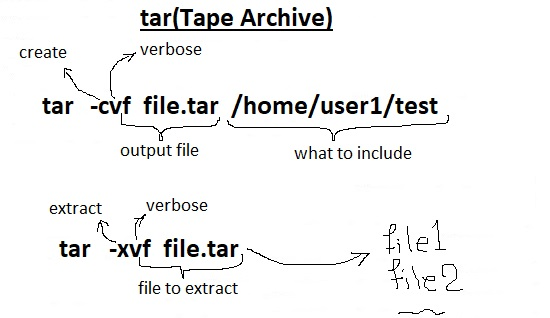
The Linux ‘tar’ stands for tape archive, is used to create Archive and extract the Archive files. tar command in Linux is one of the important command which provides archiving functionality in Linux.
Here a few common use cases of the tar command:
* Backup of Servers and Desktops.
* Document archiving.
* Software Distribution.
**Syntax of \`tar\` command in Linux:**
```
tar [options] [archive-file] [file or directory to be archived]
```
*note: by default tar uncompress file in your current directory and it can make some problems(overwriting ,...), for avoiding that use `tar -xvf backupfile -C /restoreDir` command. `-C` means change the directory before extracting the backup.*
The tar command bundles multiple files into a single archive file, optionally compressing them using options like -z (gzip) or -j (bzip2), but they don't change the directory structures, which makes it ideal for backups or file distribution.
#### **Examples of tar Command**
Command
Description
tar xvf file.tar "fileA" "fileB"
or
tar zxvf file1.tar.gz "fileA" "fileB"
or
tar jxvf file2.tar.tbz "fileA" "fileB"
Untar multiple .tar, .tar.gz, .tar.tbz
tar czf file.tar | wc -c
or
tar czf file1.tar.gz | wc -c
or
tar czf file2.tar.tbz | wc -c
Check size of existing tar, tar.gz, tar.tbz file
tar rvf file.tar *.c
Update existing tar file
tar tf file.tar
List the contents and specify the tarfile
tar tvf file.tar filename
pass a file name as an argument to search a tarfile
tar tvf file.tar
Viewing the Archive
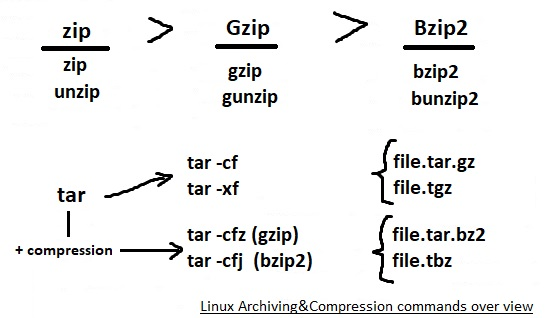
and final summary:
***
### Additional Information
#### **gzip vs zip Commands: When to Use**
The `gzip` and `zip` commands are both used for file compression in Linux, but they differ in functionality, compression method, and usage scenarios.
| Feature | Gzip | Zip |
| -------------------------- | ---------------------------------------------------------------------------- | ------------------------------------------------------------------------------------------------ |
| **Compression Algorithm** | Uses the DEFLATE algorithm. | Uses various compression algorithms, including DEFLATE, LZ77, and others. |
| **File Format** | Typically appends ".gz" to compressed files. | Uses ".zip" extension for compressed archives. |
| **Archiving Approach** | Common practice is to use tarball (.tar) before compression. | Compresses individual files and then adds them to the archive. |
| **File Extraction** | Requires decompression of the entire file before extracting specific files. | Allows direct extraction of individual files without full decompression. |
| **Compression Efficiency** | Generally offers better compression, especially for a large number of files. | Compression efficiency may vary, and it might be less effective than Gzip for certain scenarios. |
| **Extraction Time** | Takes longer to extract a specific file from a compressed archive. | Allows quicker extraction of individual files from the archive. |
| **Ideal Use Case** | Well-suited for compressing a large number of files into a single archive. | Suitable for compressing and archiving individual files with a focus on easy extraction. |
| **Redundancy Utilization** | Efficiently utilizes redundancy in files to reduce overall file size. | May result in larger archive sizes, especially when compressing identical files multiple times. |
#### Difference between tar xz and zip
The following are the differences between tar **xz** and **zip** tools:
| Feature | `tar xz` | `zip` |
| ------------------------- | ------------------------------------------------------------------------------ | --------------------------------------------------------------------------------------------- |
| **Compression Algorithm** | It uses `xz` (LZMA2 algorithm) | It uses `deflate` algorithm |
| **File Handling** | it combines multiple files into a single archive before compressing | It compresses files individually within a single archive |
| **Compression Ratio** | it generally offers higher compression ratios | Typically lower compression ratios compared to `xz` |
| **Compatibility** | Commonly used in Unix/Linux environments; requires additional tools on Windows | It is widely supported across all major operating systems including Windows, macOS, and Linux |
| **File Extension** | It commonly results in `.tar.xz` files | It results in `.zip` files |
.
.
.
***
source:
\
\
\
\
\